I’ve put together a simple Python starter file for running Screaming Frog through the CLI.
The idea is to keep it deliberately easy to follow. Rather than building loads of logic around the command, the script mirrors the anatomy of a normal Screaming Frog CLI command and you control the crawl by commenting or uncommenting the options you want to use.
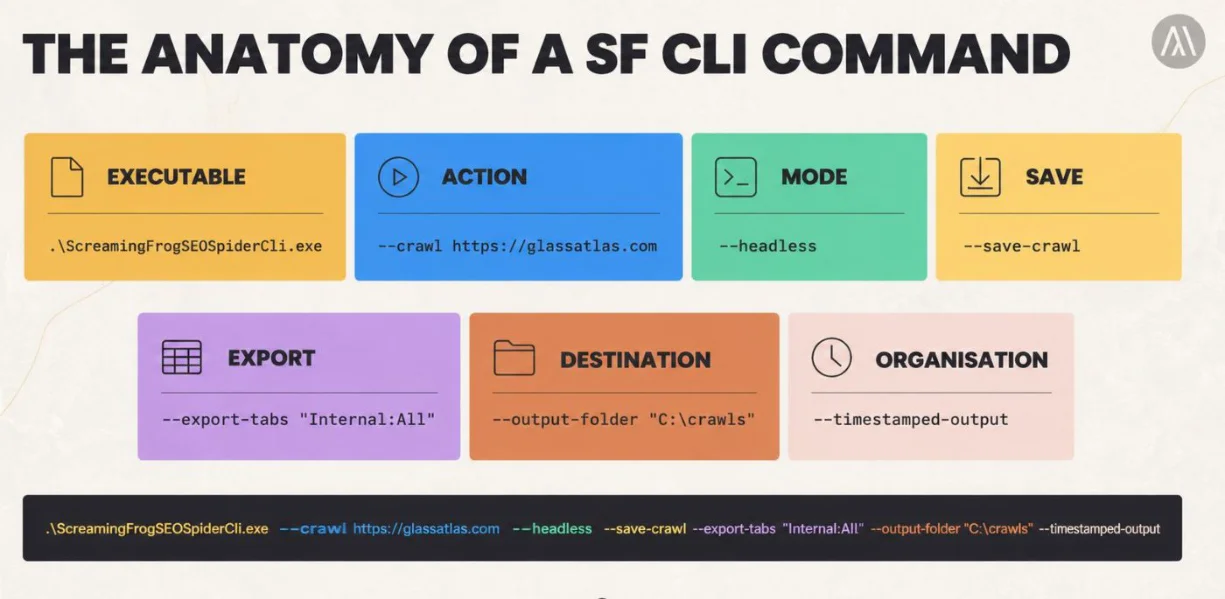
The attached file includes examples for both Windows and macOS, standard website crawls, List Mode, saved .seospiderconfig files, tab exports, bulk exports, output folders, timestamped runs, overwrite behaviour, project names and task names.
Watch the video guide
Folder structure
I use the following structure:
The paths are already laid out in the Python file. You just need to update them to match your own machine.
Choosing how Screaming Frog crawls
By default, the example runs a normal website crawl:
If you want to use List Mode instead, comment those lines out and uncomment:
The URL_LIST path points to:
This gives you a simple way of feeding Screaming Frog a fixed set of URLs without changing the rest of the script.
Using a Screaming Frog config file
If you have already configured your crawl inside the Screaming Frog GUI, save the configuration as a .seospiderconfig file and place it inside the config folder.
Then uncomment:
The example path points to:
This is useful because Python does not need to recreate all your Screaming Frog settings. Rendering, extraction, crawl limits, robots handling, user-agent settings and the rest can continue to be managed through Screaming Frog itself.
Exports
The starter script exports the Internal tab by default:
Again, uncomment what you need and leave everything else disabled.
Keeping crawl history
The example uses:
This keeps each run inside its own timestamped folder, which is useful if you want to compare crawls over time.
If you only care about the latest output, comment that out and uncomment:
Use one or the other.
Project and task names
I’ve also included:
Change these to something meaningful for your own project. This becomes particularly useful once you start running several different automated crawls.
Triggering the script automatically
The Python file can be triggered by most self-hosted automation platforms capable of executing a Python script or calling a process on the machine.
I mainly use self-hosted n8n, so most of my guides are geared towards that setup. In its simplest form the workflow can be:
n8n decides when the crawl runs. Python builds and executes the command. Screaming Frog does the actual crawling.
The same general approach can be adapted for other automation platforms, and it can also be adapted for cloud-hosted workflows. The main difference is that the machine actually running Screaming Frog still needs access to Screaming Frog, Python, the configuration files and any input/output locations required by the workflow.
Why I structured it this way
This isn't intended to be a clever Python framework. It is deliberately quite basic.
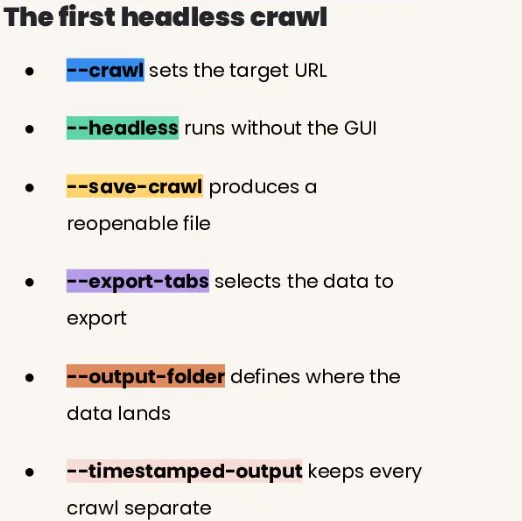
If you already understand Screaming Frog CLI commands, you should be able to open the file and recognise exactly what is happening. Want List Mode? Uncomment it. Want your saved crawl configuration? Uncomment it. Need a bulk export? Switch it on.
Once you have this working, you can start adding processing, comparisons, reporting, APIs, LLMs or whatever else you want downstream.
But the starting point is simply:
Get Python to reliably run the Screaming Frog CLI command first.
Here is the full python file:
The idea is to keep it deliberately easy to follow. Rather than building loads of logic around the command, the script mirrors the anatomy of a normal Screaming Frog CLI command and you control the crawl by commenting or uncommenting the options you want to use.
The attached file includes examples for both Windows and macOS, standard website crawls, List Mode, saved .seospiderconfig files, tab exports, bulk exports, output folders, timestamped runs, overwrite behaviour, project names and task names.
Watch the video guide
Folder structure
I use the following structure:
Code:
workflows/
├── workflow.py
├── inputs/
│   └── urls.txt
├── config/
│   └── weekly-crawl.seospiderconfig
└── output/
The paths are already laid out in the Python file. You just need to update them to match your own machine.
Choosing how Screaming Frog crawls
By default, the example runs a normal website crawl:
Code:
"--crawl",
"https://quidbuys.com/",
If you want to use List Mode instead, comment those lines out and uncomment:
Code:
"--crawl-list",
URL_LIST,
The URL_LIST path points to:
Code:
workflows/inputs/urls.txtThis gives you a simple way of feeding Screaming Frog a fixed set of URLs without changing the rest of the script.
Using a Screaming Frog config file
If you have already configured your crawl inside the Screaming Frog GUI, save the configuration as a .seospiderconfig file and place it inside the config folder.
Then uncomment:
Code:
"--config",
CONFIG_FILE,
The example path points to:
Code:
workflows/config/weekly-crawl.seospiderconfigThis is useful because Python does not need to recreate all your Screaming Frog settings. Rendering, extraction, crawl limits, robots handling, user-agent settings and the rest can continue to be managed through Screaming Frog itself.
Exports
The starter script exports the Internal tab by default:
Code:
"--export-tabs",
"Internal:All",
Again, uncomment what you need and leave everything else disabled.
Keeping crawl history
The example uses:
Code:
"--timestamped-output",This keeps each run inside its own timestamped folder, which is useful if you want to compare crawls over time.
If you only care about the latest output, comment that out and uncomment:
Code:
"--overwrite",Use one or the other.
Project and task names
I’ve also included:
Code:
"--project-name",
"Glass Atlas",

"--task-name",
"Weekly Crawl",
Change these to something meaningful for your own project. This becomes particularly useful once you start running several different automated crawls.
Triggering the script automatically
The Python file can be triggered by most self-hosted automation platforms capable of executing a Python script or calling a process on the machine.
I mainly use self-hosted n8n, so most of my guides are geared towards that setup. In its simplest form the workflow can be:
Code:
Schedule Trigger
      ↓
Python Script
      ↓
Screaming Frog CLI
n8n decides when the crawl runs. Python builds and executes the command. Screaming Frog does the actual crawling.
The same general approach can be adapted for other automation platforms, and it can also be adapted for cloud-hosted workflows. The main difference is that the machine actually running Screaming Frog still needs access to Screaming Frog, Python, the configuration files and any input/output locations required by the workflow.
Why I structured it this way
This isn't intended to be a clever Python framework. It is deliberately quite basic.
If you already understand Screaming Frog CLI commands, you should be able to open the file and recognise exactly what is happening. Want List Mode? Uncomment it. Want your saved crawl configuration? Uncomment it. Need a bulk export? Switch it on.
Once you have this working, you can start adding processing, comparisons, reporting, APIs, LLMs or whatever else you want downstream.
But the starting point is simply:
Get Python to reliably run the Screaming Frog CLI command first.
Here is the full python file:
Code:
import os
import subprocess

# ============================================================
# SCREAMING FROG CLI AUTOMATION STARTER
#
# Folder structure:
# workflows/
# ├── workflow.py
# ├── inputs/urls.txt
# ├── config/weekly-crawl.seospiderconfig
# └── output/
#
# Comment / uncomment the options you want to use.
# ============================================================


# WINDOWS PATHS
SCREAMING_FROG = r"C:\Program Files (x86)\Screaming Frog SEO Spider\ScreamingFrogSEOSpiderCli.exe"
URL_LIST = r"C:\Users\Administrator\Desktop\workflows\inputs\urls.txt"
CONFIG_FILE = r"C:\Users\Administrator\Desktop\workflows\config\weekly-crawl.seospiderconfig"
OUTPUT_FOLDER = r"C:\Users\Administrator\Desktop\workflows\output"

# macOS PATHS
# Comment out the Windows paths above and uncomment these.
# SCREAMING_FROG = "/Applications/Screaming Frog SEO Spider.app/Contents/MacOS/ScreamingFrogSEOSpiderLauncher"
# URL_LIST = "/Users/chris/Desktop/workflows/inputs/urls.txt"
# CONFIG_FILE = "/Users/chris/Desktop/workflows/config/weekly-crawl.seospiderconfig"
# OUTPUT_FOLDER = "/Users/chris/Desktop/workflows/output"

os.makedirs(OUTPUT_FOLDER, exist_ok=True)


command = [

    # EXECUTABLE
    SCREAMING_FROG,

    # ACTION
    # Choose ONE.

    # Standard crawl:
    "--crawl",
    "https://quidbuys.com/",

    # List Mode:
    # Comment out the two lines above and uncomment these.
    # "--crawl-list",
    # URL_LIST,

    # MODE
    "--headless",

    # CONFIG
    # Uncomment both lines to use your saved SF configuration.
    # "--config",
    # CONFIG_FILE,

    # SAVE
    # Saves the complete crawl for using in desktop app and MCP
    # "--save-crawl",

    # EXPORT
    "--export-tabs",
    "Internal:All",

    # Multiple tab exports:
    # "--export-tabs",
    # "Internal:All,Response Codes:Client Error (4xx)",

    # BULK EXPORTS
    # "--bulk-export",
    # "Links:All Inlinks",

    # Multiple bulk exports:
    # "--bulk-export",
    # "Links:All Inlinks,Links:All Outlinks",

    # FORMAT
    "--export-format",
    "csv",

    # DESTINATION
    "--output-folder",
    OUTPUT_FOLDER,

    # ORGANISATION
    # Choose ONE.

    # Keep each run:
    "--timestamped-output",

    # Or replace the previous output:
    # Comment out --timestamped-output and uncomment this.
    # "--overwrite",

    # PROJECT
    "--project-name",
    "Glass Atlas",

    # TASK
    "--task-name",
    "Weekly Crawl",
]


print("\nRunning Screaming Frog CLI:\n")

for argument in command:
    print(argument)

subprocess.run(command, check=True)

print("\nScreaming Frog crawl completed successfully.")
Last edited: